
Support Talk Newsletter · Preview
EMP501 Interim Reconciliation: 21 Sep - 31 Oct 2026
A quick reminder: employers need to reconcile payroll for 1 March–31 August 2026 and submit their EMP501 by 31 October 2026.
What Your EMP501 Must Show
- Reconciled PAYE, UIF, and SDL values that match your submitted EMP201 returns. Where these differ from the interim IRP5/IT3(a) certificates generated, correct the prepopulated figures.
- Actual payments made during the period, excluding penalties and interest.
- Accurate payroll and employee information, including employees’ tax reference numbers and IRP5/IT3(a) certificates for 1 March to 31 August 2026.
Three Ways to Get Your EMP501 Done
- We assist you: Work with our payroll specialists for hands-on guidance, data review, and submission support. Book a consultation
- We educate you: Learn the complete process at your own pace through self-guided eLearning videos and downloadable resources.
- DIY with our guide: Reconcile and submit independently using our step-by-step guide.
What’s New for 2026
SARS plans to release an updated e@syFile™ Employer build in mid-September. Download the latest version once it’s formally released. The updated Business Requirements Specification (SARS_PAYE_BRS – PAYE Employer Reconciliation V25.3.0) is already on the SARS website and includes a new ITREG source code to reduce duplicate Income Tax registrations, plus minor changes to source code validations and descriptions. Worth a review before you prepare your submission.
Income Tax Numbers Are Still Mandatory
SARS has strictly enforced Income Tax numbers in e@syFile™ Employer and eFiling since the February 2026 employer filing season. Every employee needs a valid number before you sub-mit. Missing or invalid numbers can delay processing or get your EMP501 rejected.
Employers can use the ITREG/BundleReg process on eFiling or e@syFile™, the Tax Reference Number Enquiry Service on eFiling, or book an appointment at a SARS Service Centre. Employ-ees can register or retrieve their own numbers on the SARS website.
How to Submit
- e@syFile™ Employer: Works for any number of employee tax certificates.
- SARS eFiling: Takes up to 50 IRP5/IT3(a) certificates per submission.
- SARS Service Centre: Employers with five or fewer certificates who can’t use either channel may book an appointment.
Why Timing and Accuracy Matter
Submitting on time helps avoid PAYE penalties from 1% to 10%, plus possible interest, shortfall penalties, and forfeited unused ETI.
Please note: Wilful or negligent non-compliance may result in a fine or up to two years’ imprisonment on conviction.
After You Submit
Once submitted, check your status and PAYE Dashboard to confirm processing and any outstanding obligations.
More Information
Full details are in the SARS notice, the e@syFile™ Employer User Guide, and the Step-by-Step Guide to the Employer Reconciliation Process.
Frequently asked questions
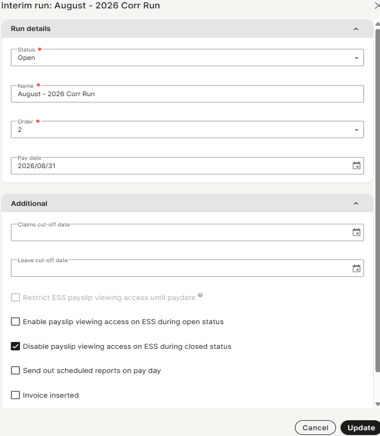
Question: How do I create an interim correction run linked to August?
Answer: Go to Payroll Cycle > Run Management, select the plus icon, complete the required fields, and then select Update.
Question: How do I update or modify the Trade Classification and SIC Codes?
Answer: Navigate > Reports > Tax Certificate Run. Follow these steps:
- Select the option "Change trade classification and SIC codes".

- Enter the updated standard industry code and trade classification in the provided fields.

- Save your changes to complete the process.
Question: How do I generate and reconcile the EMP501 and EMP201 reports?
Answer: Follow these three steps to complete the core reconciliation:
- Generate the EMP501: Navigate to Reports > Reports > Standard (Classic) > Legislative > EMP501 Report.
- Generate the EMP201s: Navigate to Reports > Reports > Standard > Legislation > EMP201. (Note: EMP201s reflect the monthly payments made to SARS.)
- Reconcile: Compare the figures on your consolidated EMP501 directly against your monthly EMP201s to ensure they balance.
Payroll Component Translations Are Here
You can now add translated payroll component names directly from the Payroll Components screen, making it easier for custom payslips and reports to display names in each company or frequency’s configured language.
Setup Instructions:
- A new Component Name Translations section is available when adding or editing a component via*: Config > Payroll > Payroll Config > Payroll Components*
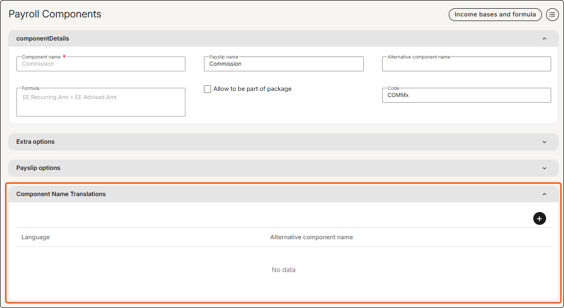
- Add translations for the required languages.
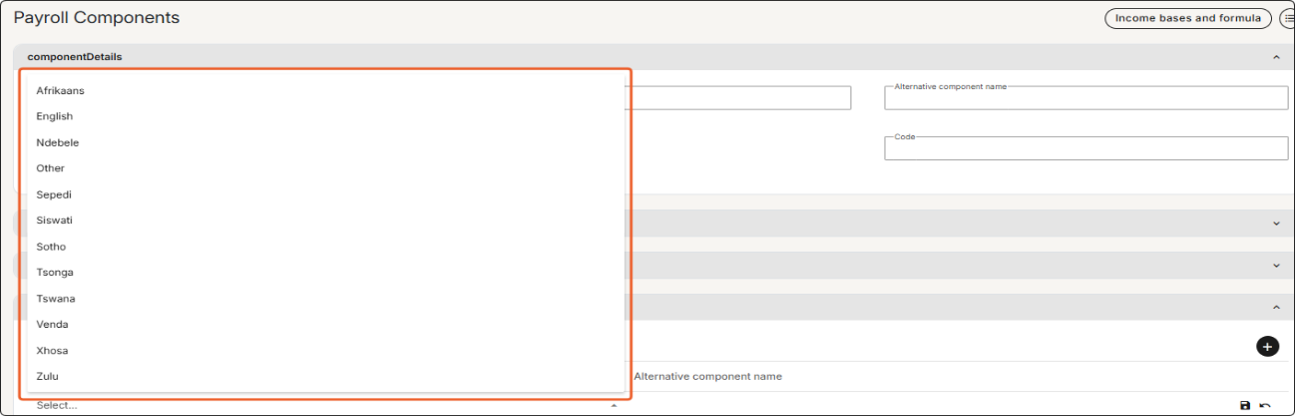
- Update any custom payslips or reports to reference the translated values using the localisation function in the expression editor. (Note: Translations won’t appear automatically until this setup is in place.)
Maintaining Public Holidays
The Public Holidays feature helps companies manage national, provincial, and custom public holidays with more flexibility and control.
How to Use:
- Use Public Holiday Categories to create optional custom categories for organising holidays.

- Navigate to Config > Leave > Leave Administration > Public Holidays to add organisation-specific holidays to the calendar.
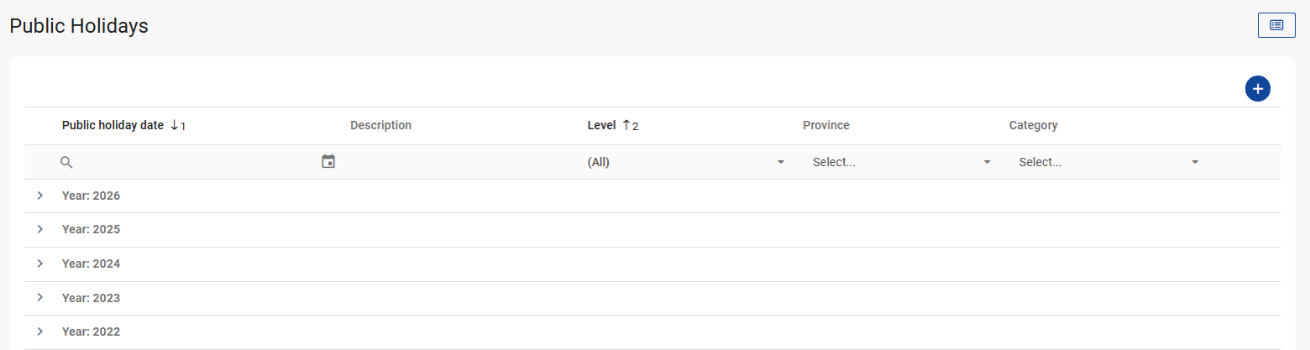
Holiday Levels:
- National: For company-wide holidays.
- Provincial: For province-specific holidays based on the employee’s Basic Profile address.
- Category: To add to or override the existing public holiday calendar.
AI Assist Is Ready When You Need It
Get immediate, on-demand support directly inside the DLP platform, without needing to log a support ticket or wait for an email reply.
- Powered by AI Assist Knowledge Base: Resolves everyday payroll queries faster by giving quick, accurate answers when you need them.
- Best Practices: Include as much context as possible in your question. The more detail you provide, the better AI Assist can tailor the response.
- Feedback: After each answer, use the thumbs up or thumbs down rating and add a quick comment to help improve AI Assist and the support experience for everyone.
Try AI Assist next time you need support and simplify the way you find answers.